


joseph rock's blog : How to Scan a QR Code From the Web: A Complete Guide

Introduction
QR codes have become an essential part of digital communication, allowing people to access websites, share information, and connect with online services quickly. They appear in advertisements, product packaging, digital documents, social media posts, and business presentations. While many people scan QR codes using their smartphone cameras, there are situations where scanning a code directly from a web page or saved image is more convenient. Learning how to scan qr code from web content can help users access information without printing the code or switching between multiple devices.
Whether you are using a desktop computer, laptop, or smartphone, several practical methods can help you decode QR codes displayed online.
What Does Scanning a QR Code From the Web Mean?
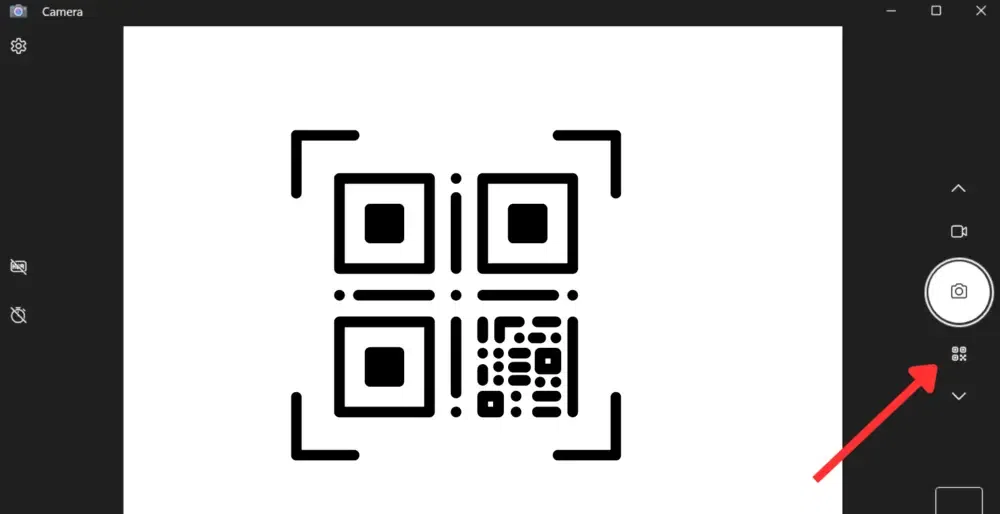
Scanning a QR code from the web involves reading a code that appears on a website, online document, screenshot, or digital image. Instead of pointing a camera at a printed object, users extract the code's information directly from digital content.
QR codes store data through a two-dimensional pattern of small squares. Depending on their purpose, they may contain website addresses, contact information, text, Wi-Fi details, or other supported information.
A compatible scanner analyzes the pattern and converts it into readable data. If the code contains a URL, users can review the address and decide whether to open it. This method is especially helpful when a QR code appears on the same device being used to access the internet.
Methods for Scanning QR Codes From Web Pages
There are several ways to decode an online QR code, depending on your device and the available tools.
Use an Online QR Code Scanner
A browser-based QR scanner is one of the simplest options. Open a trusted scanning website and check whether it supports uploading QR code images. If the code appears on a web page, take a screenshot or save the image when permitted, then upload it to the scanner.
The service will analyze the image and display the decoded information if the code is readable. Some online scanners also support camera-based scanning, although that feature may be more useful for physical QR codes.
Use a Smartphone Camera
If the QR code is displayed on a computer monitor, you can open your phone's camera and point it toward the screen. Keep the entire code visible and adjust the distance until the camera recognizes the pattern.
This method avoids the need to download the image or use another website. However, screen reflections, low brightness, or a small QR code may affect scanning accuracy.
Scan a Saved Screenshot
When a QR code appears in an online article, presentation, or digital document, saving a screenshot can make it easier to process. Open the screenshot in a compatible QR scanning application or use a service that supports image uploads.
Some smartphones also provide image-recognition features that can identify QR codes within saved pictures. Availability depends on the device and software version.
Why Scanning QR Codes From the Web Is Useful
Scanning digital QR codes can save time and simplify access to online information. Users do not need to print a code before decoding it, which can reduce unnecessary paper use and make digital workflows more efficient.
Students may encounter QR codes in online learning materials and use them to access supplementary lessons or educational resources. Professionals can decode codes included in reports, presentations, and digital brochures without manually typing lengthy URLs.
Businesses can also benefit from testing QR codes before publishing marketing materials. By scanning a code from a digital proof, employees can confirm that it directs users to the intended destination before printing large quantities of promotional items.
For online shoppers, QR codes may provide additional product details, instruction manuals, or warranty information. Accessing these resources directly from a screen can make product research more convenient.
Common Problems and How to Fix Them
Sometimes a QR code cannot be scanned successfully. One common reason is poor image quality. A blurry screenshot, compressed image, or distorted pattern can make it difficult for the scanner to recognize the code.
To solve this problem, use a higher-resolution image and ensure that the complete QR code is visible. Avoid cropping the outer edges, and enlarge the image carefully if the code appears too small.
Another issue is browser or camera compatibility. If a scanning website cannot access the camera, check the browser's permission settings when camera access is necessary. For image-based scanning, verify that the selected website supports the uploaded file format.
If the code is damaged or displayed incorrectly, try obtaining a clearer version from the original source.
Security Tips for Online QR Scanning
Scanning a QR code does not guarantee that its destination is safe. Some codes lead to fraudulent websites designed to collect personal information or imitate trusted services.
Always inspect the decoded URL before opening it. Avoid entering passwords, payment details, or confidential information on unfamiliar websites. When using an online scanner, review its privacy policy before uploading images that may contain sensitive data.
For payments, independently confirm the recipient and amount before authorizing a transaction. These precautions help reduce risks while allowing users to enjoy the convenience of QR technology.
Conclusion
Learning how to scan a QR code from the web makes it easier to retrieve digital information from websites, screenshots, and online documents. Users can choose browser-based scanners, smartphone cameras, or image-recognition features according to their needs. With clear images, compatible tools, and careful attention to security, scanning QR codes directly from digital content can become a simple and useful part of everyday online activities.
In:- News